

We can add TestNG in two ways to the maven project
First, Download the Jar file and import it into the maven project
Step 1:To download the TestNG jar file go to the web site https://mvnrepository.com/artifact/org.testng/testng and select the latest version of TestNG
Step 2:Click the Jar option in the files column
.png)
Step 3:Once the download completed open your IDE [In my case I am using IntelliJ IDEA] and create a New Maven Project [Select Archetype as Quick Start]
.png)
Here you can change the artifact coordinates if you want or you can leave it as it is.
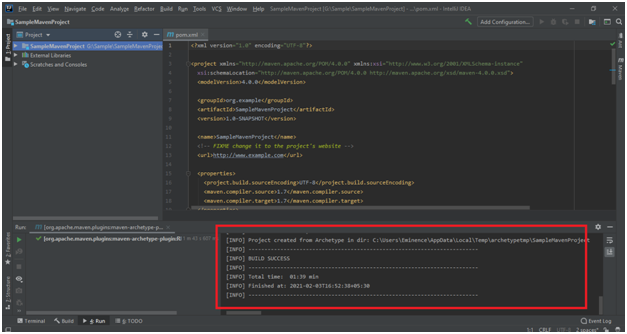
Step 4:Once you did all the things you will see the below screen
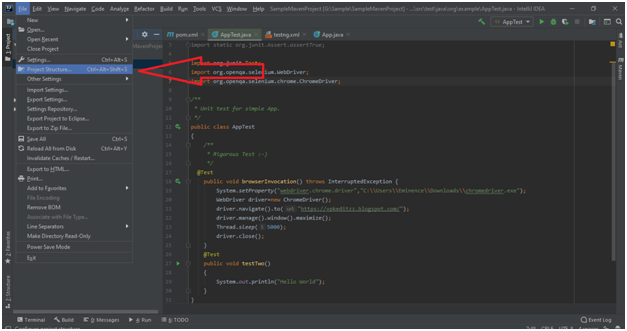
Step 5:Now go to the Project Structure menu in order to import the TestNG jar file to the project
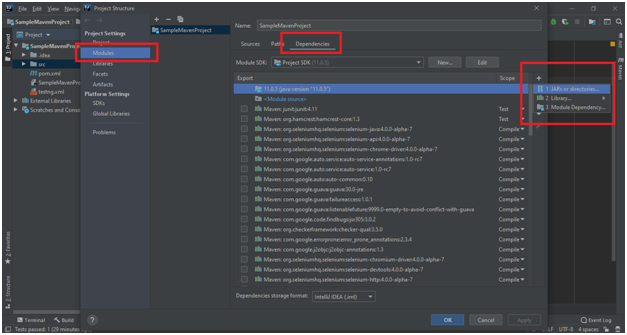
Step 6:Click on the Dependencies tab under the Modules section
Step 7:Now click on the ‘+’ icon and select JARs or Directory option like below
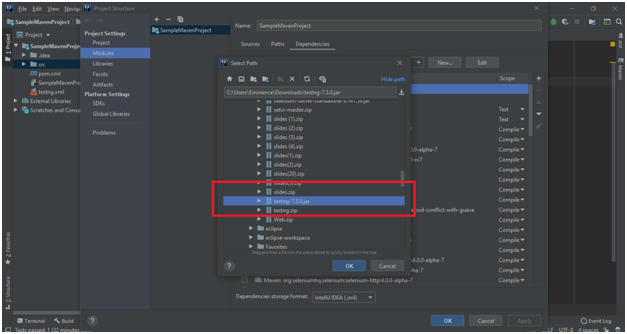
Step 8:Select the JAR file from your downloaded location and click “OK” on all opened popup.
Step 9:To verify TestNG is installed in your project, Just expand the “External Libraries” from the left sidebar and there you can see your TestNG JAR file like below
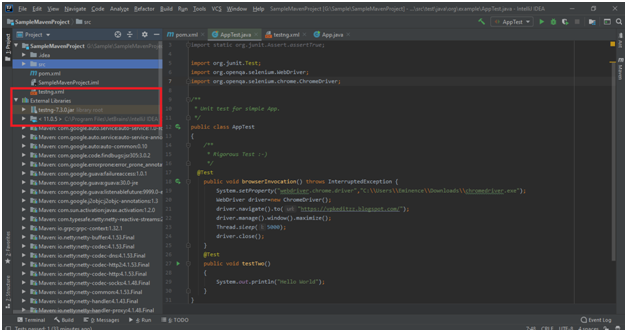
If TestNG JAR is not displayed in the External Library folder kindly follow the above steps carefully.
Second, TestNG installation by adding dependencies in the pom.xml file
Step 1:go to the web site https://mvnrepository.com/artifact/org.testng/testng and select the latest version of TestNG
Step 2:Now select the maven tab and copy the dependency from the text box which is displayed below
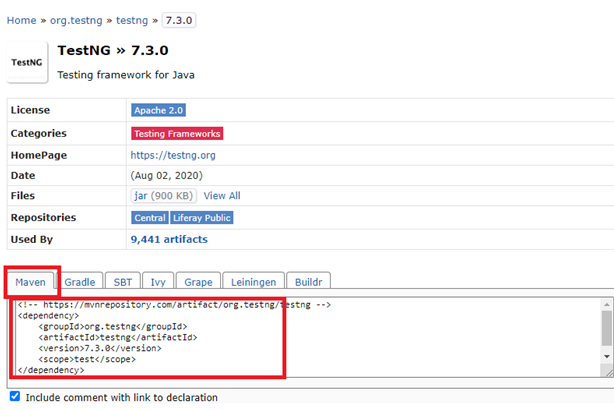
Step 3:Now open the pom.xml file in your project and paste the copied dependency between tags like below.
[Note: we need to add tag]
Step 4:After you paste that dependency you will see adding of some files under the “External Libraries” folder like below
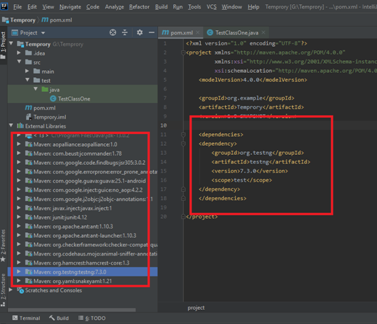
Step 5:To verify TestNG Installation, Create one class named as “TestClassOne” under G:\\src\test\java
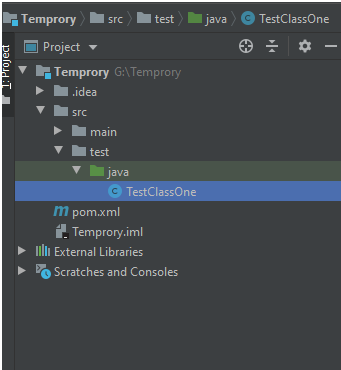
Note: You can verify the TestNG installation in method1 and method2 using this way
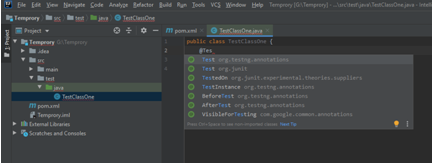
Step 6:Inside the class type “@Test”, you will see the TestNG annotation suggestions like below
We can install TestNg to our maven project in three ways in Eclipse
Direct download in the Eclipse
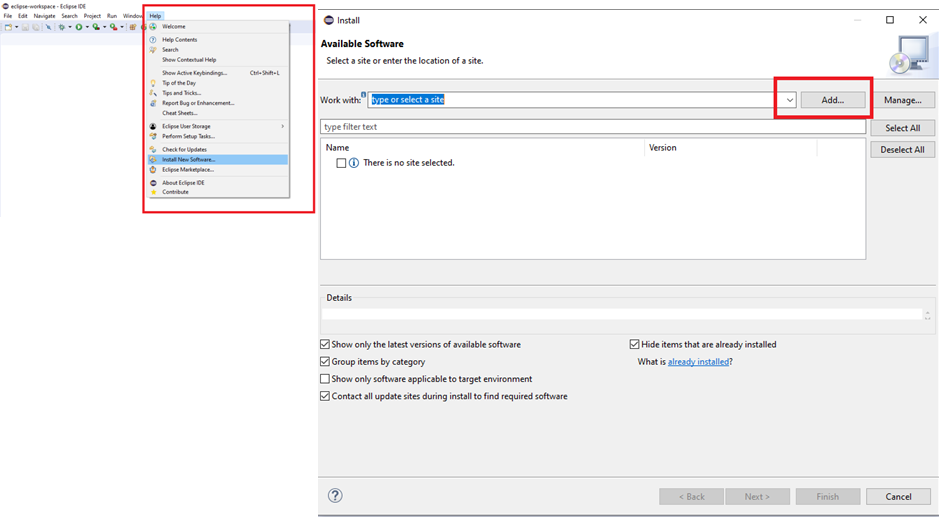
Step 1:Open Eclipse IDE Click on the Help menu and select the Install New Software option
Step 2:You will get the below the window when click the Install New Software option. In that window, click Add button
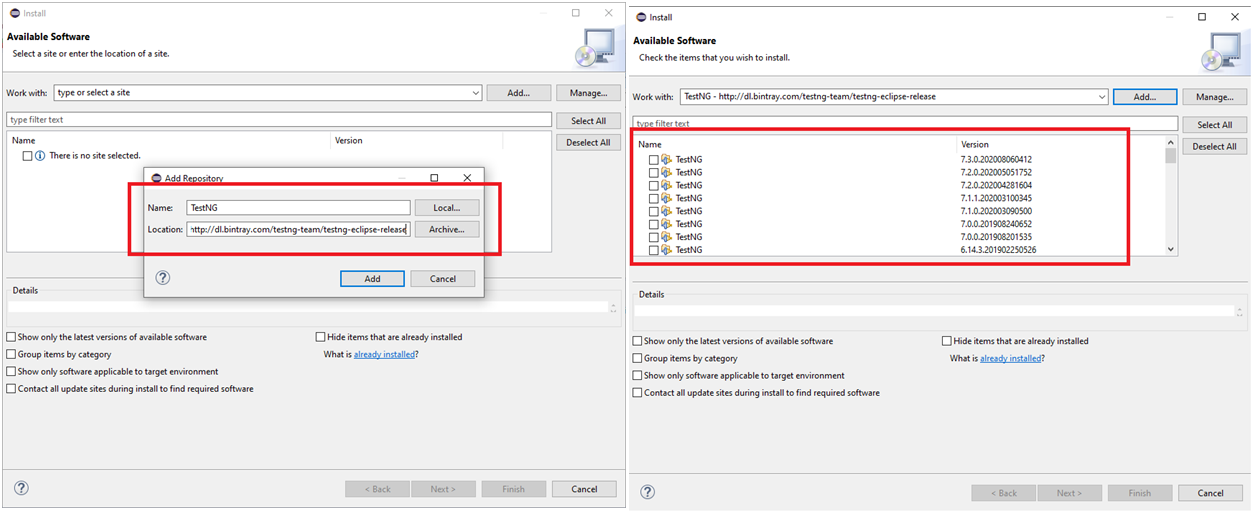
Step 3:When click add button you will get the below screen, In that enter Name as “TestNG” and enter http://dl.bintray.com/testng-team/testng-eclipse-release URL in the Location field and then click Add button
Step 4:You will get the search result like below. And select the latest version of TestNG from the search result and click the Next button
Step 5:The selected version of TestNG will be started to download after click the next button. Again click the Next button
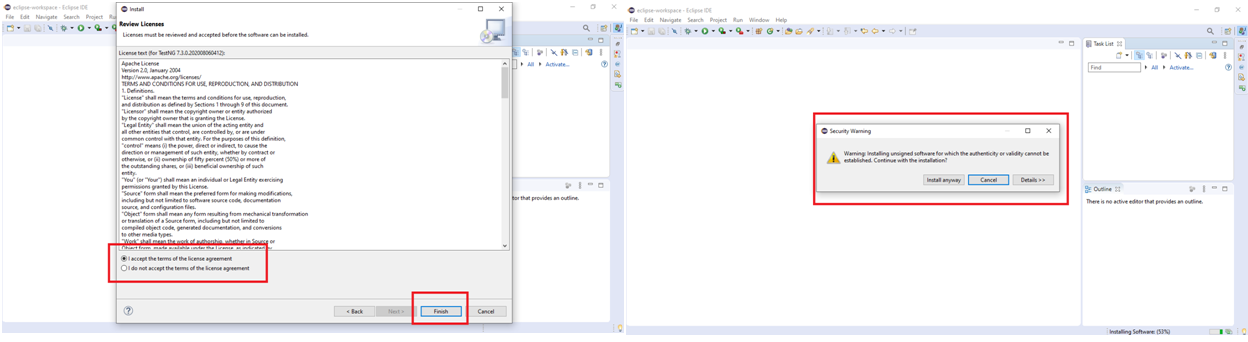
Step 6: Accept the License Agreement and click the Finish button
Step 7:Click the Install Anyway option in order to complete the TestNG installation
Step 8:Once the installation is completed you’ll be asked to restart the IDE. Just click the Restart button
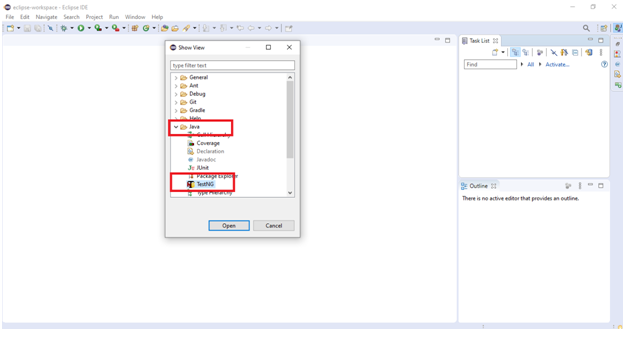
Step 9:The application will be opened with an updated plug-in including TestNG. To verify that click Help-> Show View -> Other
Step 10:Expand the Java folder and you can see the TestNG like below
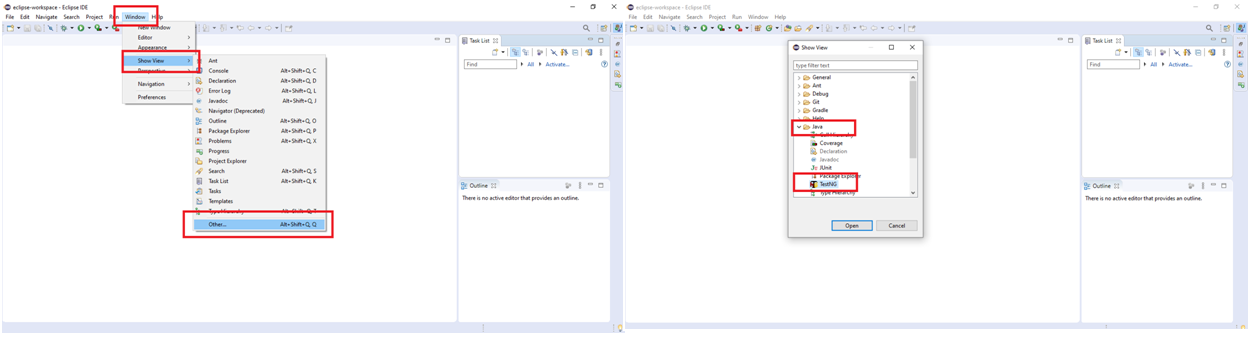
If you saw that Option the Congratulation you have successfully installed the TestNG. Unfortunately, TestNG is not displayed for you then kindly follow the above steps carefully.
Add TestNG by adding dependencies in pom.xml
TestNG Annotations
@BeforeSuite: This annotation method will run before all tests in this suite run.
@AfterSuite: This annotation method will be run after all tests in this suite run.
@BeforeTest: It runs before any test method inside the test class
@AfterTest: This annotation method will run after any test method inside the test class.
@BeforeClass: This method runs only one time before the first test method in the current class is invoked
@AfterClass: This method runs only once after all the methods in the test in the current class are executed.
@BeforeMethod: It runs before each test method in a program
@AfterMethod: It runs after each test method in a program
@Test: This annotation method is a part of a test case