

Appium identifies an Android app using its App Package Name and App Activity to execute scripts.
These values are also required in Appium Inspector when setting up a session to locate elements.
Before learning how to find them, let’s first understand what they mean.
Appium Package
The package name of an Android app uniquely identifies your app on the device, in Google Play Store, and in supported third-party Android stores.
Example: com.swaglabsmobileapp
App Activity?
The App Activity is the name of the main entry point (screen) of the application when it launches.
Example: com.swaglabsmobileapp.MainActivity
Finding Package Name & Activity Name
1. Let’s use the Sauce Labs Demo App for example.
2. Download the APK from: https://github.com/saucelabs/sample-app-mobile/releases
3. Install it on your phone or emulator.
4. Launch the app.
5. Run the following command:
For Windows: adb shell dumpsys window | find "mCurrentFocus"
Example Output: mCurrentFocus=Window{537dd5a u0 com.swaglabsmobileapp/com.swaglabsmobileapp.MainActivity}
Here:
App Package Name → com.swaglabsmobileapp
App Activity → com.swaglabsmobileapp.MainActivity
Using in Appium Inspector
Enter these details along with device information:
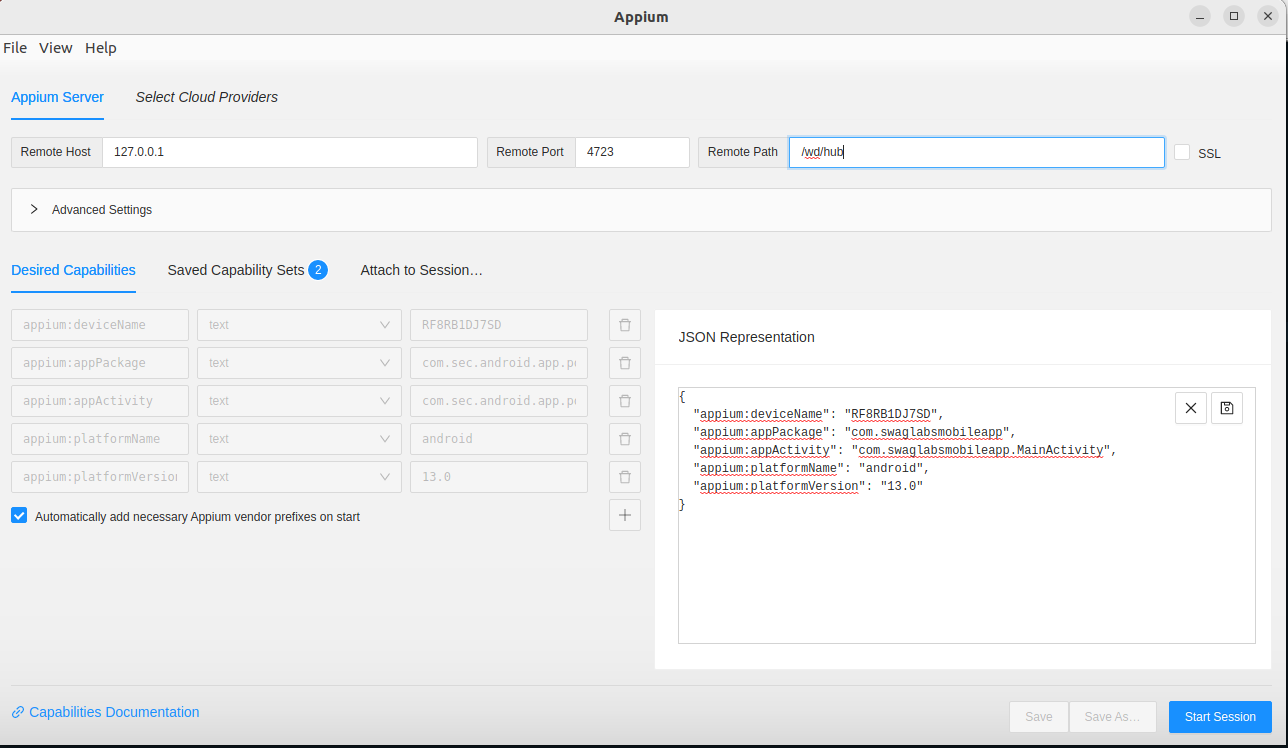
Click Start Session in Appium Inspector to launch the app and inspect elements.
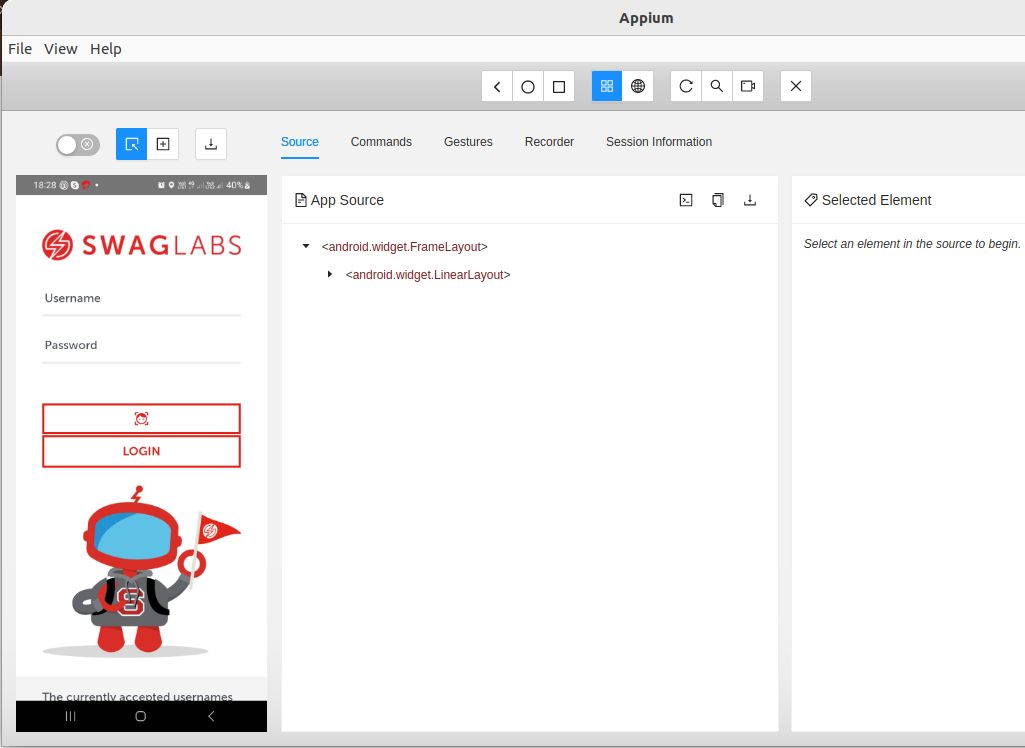
Now, we connected an Android device to a Windows machine and started an app in Appium Inspector. Inthe next tutorial, we will see how to inspect elements using Appium Inspector.