

Once an app is launched through Appium, the next step is interacting with elements like buttons, text fields, checkboxes, and links. To interact with the UI elements we need to pick the locators for those elements.
What are Locators in Test Automation?
Locators are strategies used to uniquely identify and interact with specific elements in an application’s user interface.
- In web applications, locators can be picked directly from the DOM using browser developer tools.
- In mobile applications, the DOM isn’t directly accessible. Instead, we use tools like Appium Inspector to find these elements
In the previous section, we learned how to connect an Android device to Appium Inspector. If you need to refresh, refer to the tutorial: Android Real Device Setup
With the Android Inspector
1. We can connect the mobile app and visually inspect elements.
2. It displays attributes like resource-id, content-desc, text, class, etc.
3. You can directly copy the locator code from Inspector.
Before we start picking locators from the mobile app, let’s explore the locator strategies supported by Appium.
Common Locator Strategies in Appium
Appium supports most of the locator strategies from SeleniumWebDriver and also mobile-specific ones:
|
Locator |
|
|
|
id |
Finds element by its resource-id attribute. Fast and reliable if unique. |
driver.findElement(By.id("com.android.calculator2:id/digit_5")); |
|
accessibilityId |
Finds element by accessibility label/content-desc (good for accessibility-friendly apps). |
driver.findElementByAccessibilityId("Login"); |
|
className |
Finds element by its UI class type (e.g., android.widget.Button). Often not unique. |
driver.findElement(By.className("android.widget.EditText")); |
|
xpath |
Finds element by XML path. Very flexible but slower — use only if no better locator is available. |
driver.findElement(By.xpath("//android.widget.TextView[@text='5']")); |
|
androidUIAutomator (Android only) |
Uses UIAutomator syntax for advanced queries. |
driver.findElement(MobileBy.AndroidUIAutomator("new UiSelector().text(\"5\")")); |
|
iOS Predicate String (iOS only) |
Uses iOS NSPredicate for advanced queries. |
driver.findElement(MobileBy.iOSNsPredicateString("name == 'Login'")); |
Steps to pick Locators with Appium Inspector
1. Open Appium Inspector → Start Session. In Appium Inspector the app screen appears on the left, App Source (XML tree) in the middle, Selected Element on the right.
2. Navigate to the screen you need.
3. Click the grid icon to show element borders, it will be helpful to see target area more precisely.
4. To select the element, click the element directly on the left device preview.
5. Read the attributes in Selected Element (right panel).
6. Select the right locator, copy it and use it for test.
Let's use the Sauce Labs demo app to see the examples for the picking locators. In the Section App Package Name and App Activity, we saw how to install the Sause Labs demo app in our Android Device.
Picking ID:
In Android inspector, Click the
Login to the Sauce labs app and see the home screen, In the below screen the locator ID is "com.swaglabsmobileapp:id/action_bar_root"
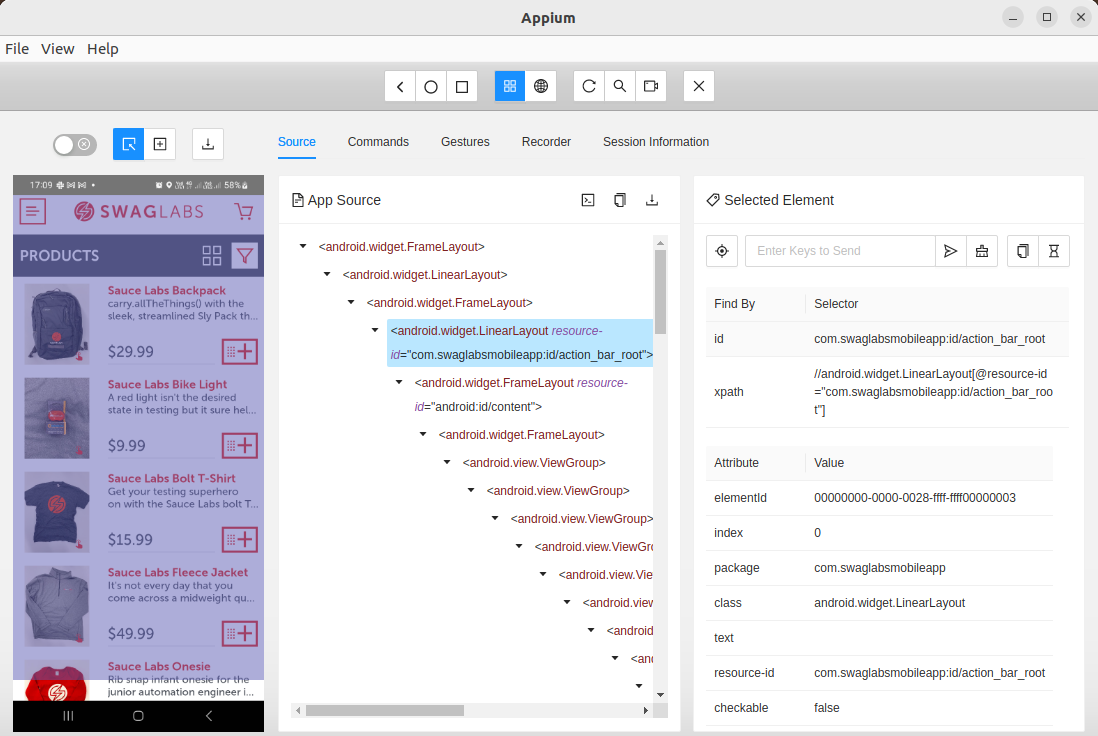
Now let see how to get the accessibilityId, ClassName, and Xpath for the element Input Element.
- Navigate to the Login screen of the app
- User Appium Inspector pointer to click Username Input
- Now you can see the list of locators in Selected Element
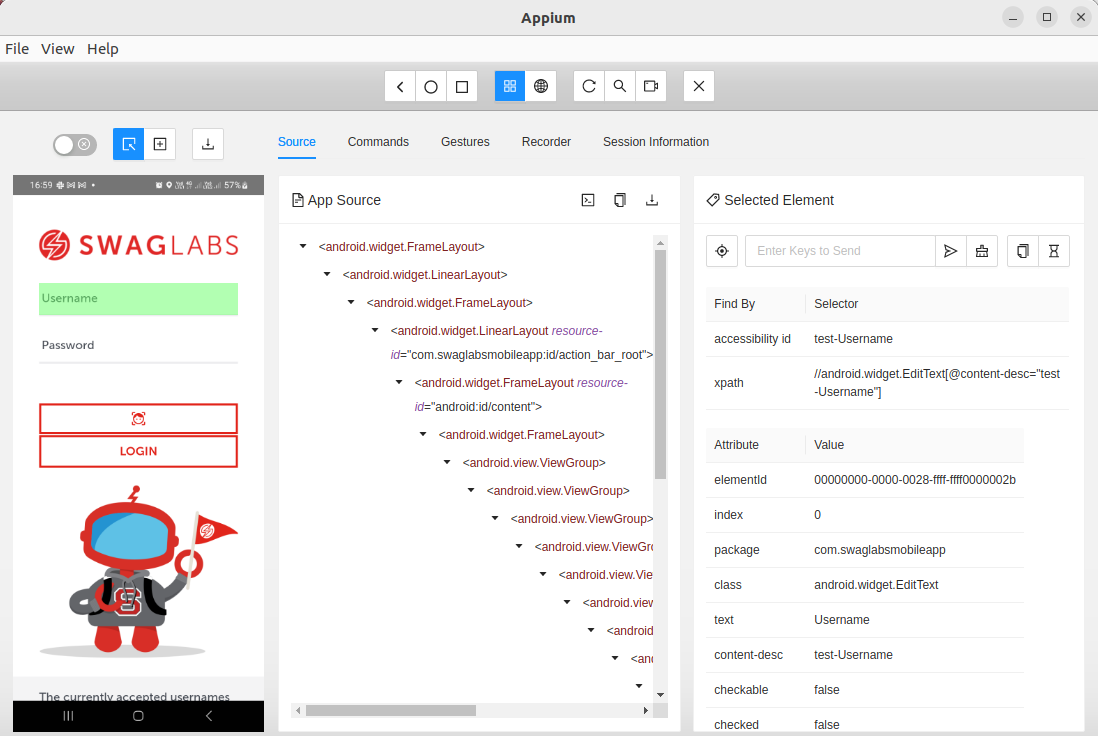
The locators for Username are ,
classname = android.widget.EditText
accessabilityId = test-Username
xpath = //android.widget.EditText[@content-desc="test-Username"]
Android Ui Automator
The Android Ui Automator is an android specific locator, the syntax as follows
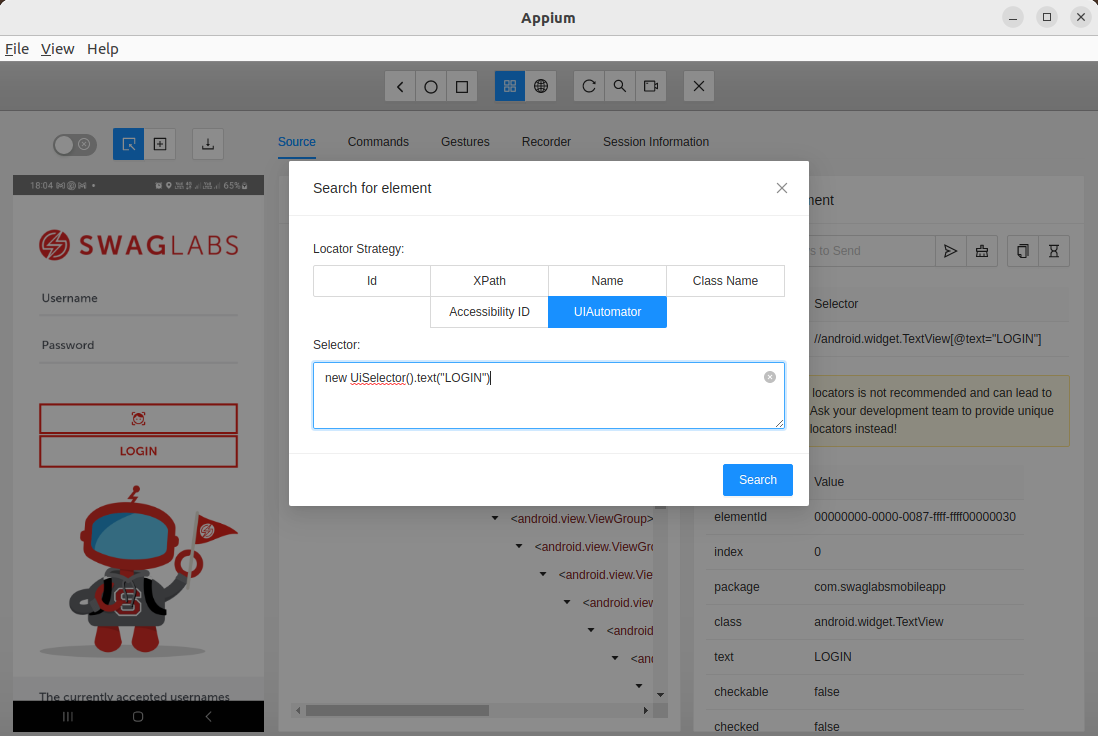
Note:
In the appium Inspector, the capability
"appium:automationName": "UIAutomator2" should be added to find the locator
{

  "appium:deviceName": "RF8RB1DJ7SD",

  "appium:appPackage": "com.swaglabsmobileapp",

  "appium:appActivity": "com.swaglabsmobileapp.MainActivity",

  "appium:platformName": "android",

  "appium:platformVersion": "13.0",

  "appium:automationName": "UIAutomator2"

}
Appium server should be downloaded then along with that the Appium capabilities should be included in Maven central repository