In this section, we will see how to set up Playwright automation using Java and Cucumber from scratch.
In many projects, test scenarios are not written only for automation engineers. Product owners, business analysts, and other non-technical stakeholders also need to understand what is being tested. Writing tests purely in code can make this difficult.
This is where Cucumber comes into the picture.
Cucumber is a Behavior Driven Development (BDD) tool that allows us to write test scenarios in a human-readable format using a language called Gherkin. These scenarios describe application behavior using simple English keywords such as Given, When, and Then.
When Playwright is integrated with Cucumber, we get the power of fast and reliable browser automation along with readable test scenarios that clearly explain the behavior of the application.
Basic Setup
Before we start writing automation code, make sure the following tools are installed on your system.
Required Tools
IDE: Install an IDE, preferably IntelliJ IDEA.
Java Development Kit (JDK): Install Java 17 or above (recommended).
You can follow this guide to install Java: QA Feast Tutorial Link
Once the IDE and JDK are installed, we can proceed with setting up Playwright and Cucumber using Maven.
Adding Playwright and Cucumber to the Project
Create a new Maven project in IntelliJ IDEA. After the project is created, open the pom.xml file located in the root directory.
Here, we need to add dependencies for:
- Playwright
- Cucumber
- JUnit (for running Cucumber tests)
Adding Playwright Dependency
You can get the latest Playwright Java dependency from:
Playwright official documentation: official link
Maven Repository (official): official link
Open the latest version and copy the Maven dependency.
Cucumber Dependency
To work with Cucumber and Java, we need the following dependencies:
1. cucumber-junit
2. cucumber-core
3. cucumber-java
You can search for these dependencies on Maven Repository and copy the XML snippets.
Final pom.xml
After adding all required dependencies, your pom.xml should look like this:
<?xml version="1.0" encoding="UTF-8"?>
<project xmlns="http://maven.apache.org/POM/4.0.0"
xmlns:xsi="http://www.w3.org/2001/XMLSchema-instance"
xsi:schemaLocation="http://maven.apache.org/POM/4.0.0 http://maven.apache.org/xsd/maven-4.0.0.xsd">
<modelVersion>4.0.0</modelVersion>
<groupId>org.example</groupId>
<artifactId>PlaywrightCucumber</artifactId>
<version>1.0-SNAPSHOT</version>
<properties>
<maven.compiler.source>22</maven.compiler.source>
<maven.compiler.target>22</maven.compiler.target>
<project.build.sourceEncoding>UTF-8</project.build.sourceEncoding>
</properties>
<dependencies>
<dependency>
<groupId>com.microsoft.playwright</groupId>
<artifactId>playwright</artifactId>
<version>1.57.0</version>
</dependency>
<!-- Source: https://mvnrepository.com/artifact/io.cucumber/cucumber-junit -->
<dependency>
<groupId>io.cucumber</groupId>
<artifactId>cucumber-junit</artifactId>
<version>7.33.0</version>
<scope>test</scope>
</dependency>
<!-- Source: https://mvnrepository.com/artifact/io.cucumber/cucumber-core -->
<dependency>
<groupId>io.cucumber</groupId>
<artifactId>cucumber-core</artifactId>
<version>7.33.0</version>
<scope>compile</scope>
</dependency>
<!-- Source: https://mvnrepository.com/artifact/io.cucumber/cucumber-java -->
<dependency>
<groupId>io.cucumber</groupId>
<artifactId>cucumber-java</artifactId>
<version>7.33.0</version>
<scope>compile</scope>
</dependency>
<dependency>
<groupId>junit</groupId>
<artifactId>junit</artifactId>
<version>4.13.2</version>
<scope>test</scope>
</dependency>
</dependencies>
</project>
After saving the pom.xml, reimport or reload the Maven project so that all dependencies are downloaded.
Note: Playwright automatically manages browser binaries. No separate browser installation is required.
Cucumber Playwright BDD Project Structure
Inside the src/test folder, the project is divided into java and resources, following a BDD + Page Object Model (POM) approach.
This structure ensures:
- Clear separation of responsibilities
- Better readability
- Easier maintenance as the project grows
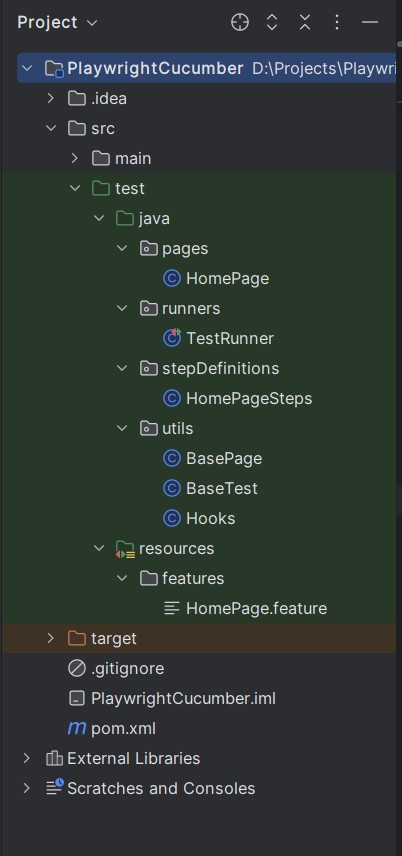
src/test/java: This folder contains all Java implementation code.
pages: Contains all Page Object classes. Each class represents a web page and includes only locators and actions related to that page. No test logic or assertions are written here.
stepDefinitions: Contains Cucumber step definition classes. These classes map Gherkin steps to Java methods and internally call page object methods.
runners: Contains Cucumber runner classes used to execute feature files and configure reporting.
utils: Contains reusable framework-level code such as Playwright browser setup and teardown, base page utilities and common helper methods.
src/test/resources/features: Contains all .feature files written in Gherkin syntax. These files describe application behavior in a business-friendly, readable format.
At the project root level:
- pom.xml manages dependencies and build configuration
. - gitignore excludes unnecessary files from version control
BaseTest Class
The BaseTest class acts as a shared holder for the Playwright Page instance. This allows step definitions and page classes to access the current browser page created during scenario execution.
File: utils/BaseTest.java
package utils;
import com.microsoft.playwright.Page;
public class BaseTest {
protected static Page page; // Stores the Playwright page for the current scenario
// Sets the Playwright page created in Hooks
public static void setPage(Page page) {
BaseTest.page = page;
}
// Returns the current Playwright page
public static Page getPage() {
return page;
}
}
BasePage Class
The BasePage class contains common Playwright helper methods that can be reused by all page classes.
Instead of repeating Playwright actions in every page class, we define them once here
File: utils/BasePage.java
package utils;
import com.microsoft.playwright.Locator;
import com.microsoft.playwright.Page;
public class BasePage {
protected Page page; // Holds the Playwright page instance
// Initializes BasePage with the current page
public BasePage(Page page) {
this.page = page;
}
// Clicks on the element identified by the selector
protected void click(String selector) {
page.locator(selector).click();
}
// Fills the given value into the element identified by the selector
protected void fill(String selector, String value) {
page.locator(selector).fill(value);
}
// Returns the locator for the given selector
protected Locator getLocator(String selector) {
return page.locator(selector);
}
}
Hooks Class
The Hooks class manages the Playwright browser lifecycle for each scenario using Cucumber’s @Before and @After hooks.
file: utils/Hooks.java
package utils;
import com.microsoft.playwright.*;
import io.cucumber.java.After;
import io.cucumber.java.Before;
public class Hooks {
private Playwright playwright;
private Browser browser;
private BrowserContext context;
@Before
public void setUp() {
playwright = Playwright.create();
browser = playwright.chromium().launch(
new BrowserType.LaunchOptions().setHeadless(false)
);
context = browser.newContext();
Page page = context.newPage();
BaseTest.setPage(page);
page.navigate("https://www.qafeast.com/");
}
@After
public void tearDown() {
Page page = BaseTest.getPage();
if (page != null) page.close();
if (context != null) context.close();
if (browser != null) browser.close();
if (playwright != null) playwright.close();
}
}
HomePage Class
The HomePage class represents the Home page of the application.
It contains only:
- Page navigation
- Page-specific actions
- UI-level checks
No test logic or assertions are written here.
File: pages/HomePage.java
package pages;
import com.microsoft.playwright.Locator;
import com.microsoft.playwright.Page;
import utils.BasePage;
public class HomePage extends BasePage {
// Initializes HomePage with the current Playwright page
public HomePage(Page page) {
super(page);
}
// Accepts the cookie consent banner
public void acceptCookies() {
click("#gdpr-cookie-accept");
}
// Clicks on the Tools menu in the header
public void clickToolsMenu() {
click("li[class='tut_ fr_tls']>a");
}
// Navigates to the Demo Site option under Tools
public void navigateToDemoSite() {
click("//li/a[text()='Demo Site']");
}
// Checks whether the Demo Site page is loaded
public boolean isDemoSiteOpened() {
Locator textbox = page.locator("//li/label[text()='Textbox']");
textbox.waitFor();
return textbox.isVisible();
}
}
Step Definition Class
Step definition classes connect Gherkin steps with automation code. Each method corresponds to a step written in the .feature file.
File: stepDefinitions/HomePageSteps.java
package stepDefinitions;
import io.cucumber.java.en.*;
import org.junit.Assert;
import pages.HomePage;
import utils.BaseTest;
public class HomePageSteps {
HomePage homePage; // Holds the HomePage object for this scenario
@Given("user is on home page")
public void user_is_on_home_page() {
homePage = new HomePage(BaseTest.getPage()); // Creates HomePage using the current browser page
}
@When("user accepts cookies")
public void user_accepts_cookies() {
homePage.acceptCookies(); // Accepts the cookie consent banner
}
@When("user clicks on Tools menu")
public void user_clicks_on_tools_menu() {
homePage.clickToolsMenu(); // Clicks the Tools menu
}
@When("user navigates to Demo Site")
public void user_navigates_to_demo_site() {
homePage.navigateToDemoSite(); // Navigates to the Demo Site page
}
@Then("Demo Site page should be opened")
public void demo_site_page_should_be_opened() {
Assert.assertTrue(
"Demo Site page is not opened",
homePage.isDemoSiteOpened() // Verifies that the Demo Site page is displayed
);
}
}
Feature File
Feature files describe application behavior using Gherkin syntax.
File: HomePage.feature
Feature: Navigate to Demo Site
Scenario: User navigates to Demo Site from Home page
Given user is on home page
When user accepts cookies
And user clicks on Tools menu
And user navigates to Demo Site
Then Demo Site page should be opened
Cucumber Test Runner (JUnit Execution)
The runner class is responsible for executing Cucumber scenarios using JUnit.
It defines:
- The location of feature files
- The packages containing step definitions and hooks
- Reporting and console output configuration
File: runners/TestRunner.java
package runners;
import org.junit.runner.RunWith;
import io.cucumber.junit.Cucumber;
import io.cucumber.junit.CucumberOptions;
// Configures and runs Cucumber tests using JUnit
@RunWith(Cucumber.class)
@CucumberOptions(
features = "src/test/resources/features", // Location of feature files
glue = {"stepDefinitions", "utils"}, // Packages containing step definitions and hooks
plugin = {"pretty", "html:target/cucumber-report.html"}, // Reporting configuration
monochrome = true // Makes console output readable
)
public class TestRunner {
}
JUnit acts as the execution engine, triggering Cucumber, which then reads the feature files and runs the mapped step definitions.
This setup results in a clean and scalable Playwright + Java + Cucumber BDD framework that follows the Page Object Model, improving test readability, reusability, and maintainability.

