

After executing Playwright tests, the next important step is analyzing the test results. Playwright provides a powerful reporting system that helps us understand which tests passed, which failed, and why failures occurred.
Playwright reports are generated automatically after test execution. By default, Playwright generates an HTML report, and it also supports several other report formats such as list, dot, line, JSON, and JUnit.
In Playwright, we can configure one or more reporters using the playwright.config.js file.
Default Playwright Report (HTML Report)
By default, Playwright generates an HTML report, which is the most commonly used and beginner-friendly report format. The HTML report is an interactive, web-based report that provides detailed insights into test execution. It is generated in the playwright-report folder after the test run completes.
The HTML report shows:
- List of all executed tests
- Pass, Fail, and Skipped status
- Error messages and stack traces
- Screenshots for failed tests (if enabled)
- Video recordings (if enabled)
- Trace Viewer integration
- Test execution time and retry information
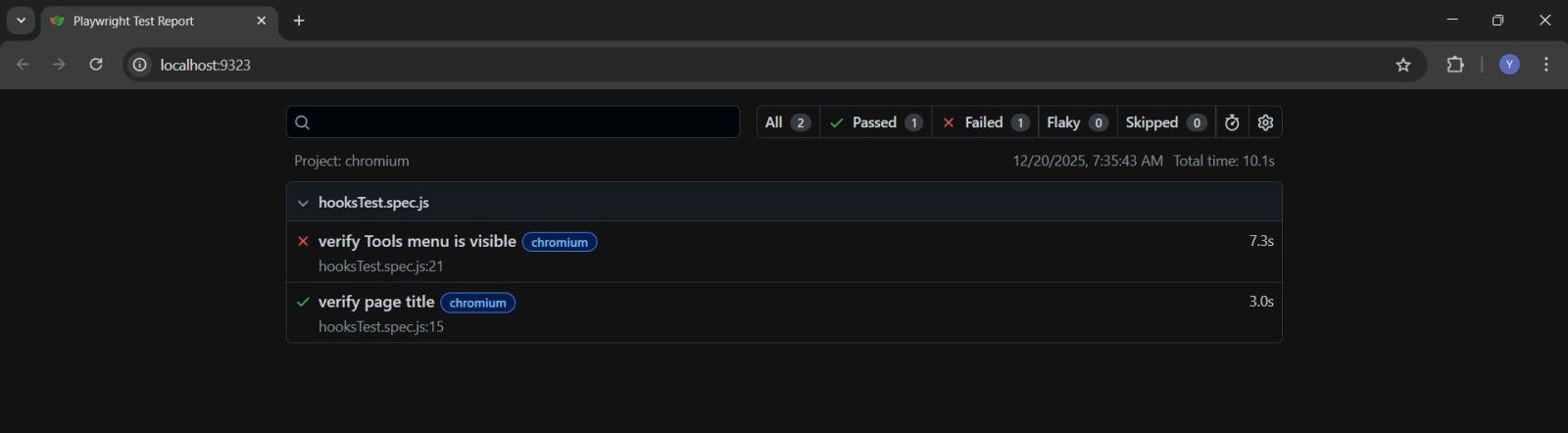
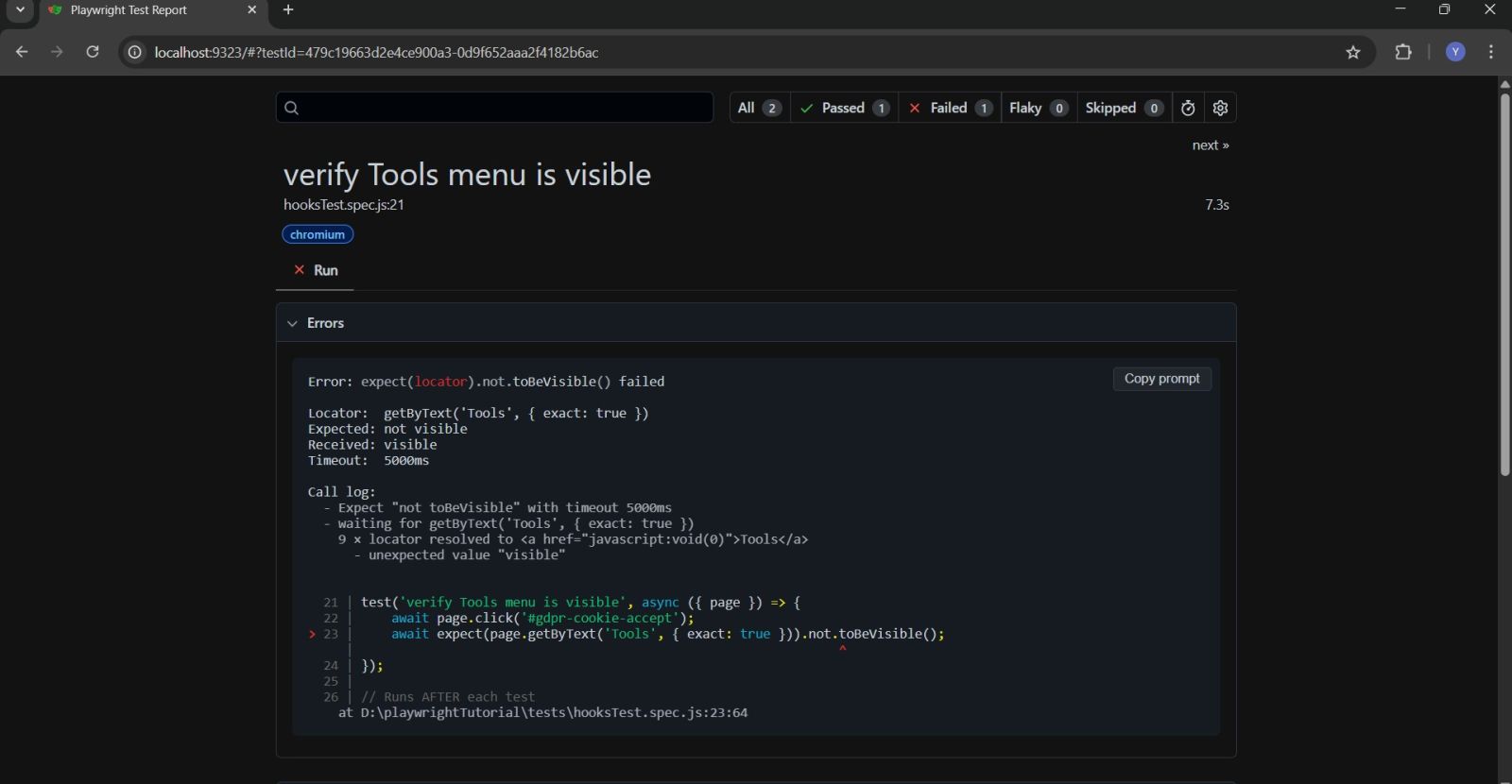
How to Open the HTML Report
After running the tests, if a test fails, the HTML report opens in the browser automatically. When the test gets passed, you can execute the following command: npx playwright show-report, this command opens the HTML report in your default browser.
Other Playwright Report Types
Playwright supports multiple reporters for different use cases.
1. List Reporter
Displays test results in a readable list format in the terminal. This reporter is useful during local development, where you want clear and descriptive output while running tests from the command line.
2. Dot Reporter
Displays dots for each test execution. This reporter is useful when you want very minimal output and quick visual feedback on test progress.
3. Line Reporter
Provides a compact, single-line output that updates as tests run. This is especially useful in CI pipelines, where log space is limited.
4. JSON Reporter
Generates a machine-readable JSON report. This reporter is useful when integrating test results into custom dashboards, analytics tools, or external systems.
5. JUnit Reporter
Generates test results in JUnit XML format. This format is commonly used in CI tools such as Jenkins, GitHub Actions, and GitLab CI.
Configuring Reports in playwright.config.js
(i)Single Reporter Configuration
This enables only the HTML report.
(ii) Multiple Reporters Configuration
This configuration generates:
- HTML report for detailed analysis
- Console output using the list reporter
- JUnit XML report for CI integration
Configuring Screenshots in Playwright
Playwright can automatically capture screenshots during test execution. By default, screenshots are disabled, so they must be explicitly enabled in playwright.config.js
Available Screenshot Options
(i) on – Capture screenshots for every test
(ii) only-on-failure – Capture screenshots only for failed tests
(iii) off – Disable screenshots
Configuring Video Recording in Playwright
Playwright can record videos of test execution. Videos are extremely useful for understanding UI failures.
Available Video Options
(i) on – Record videos for all tests
(ii) retain-on-failure – Keep videos only for failed tests
(iii) off – Disable video recording
Videos are especially useful for debugging flaky tests, understanding unexpected UI behavior, and analyzing CI failures.
After enabling screenshots and video recordings from playwright's config file, the screenshots and videos were attached to the HTML report automatically, you can find those attachments iside attachments section.