

Once Selenium WebDriver is added to the project, the next step is to configure the WebDriver. A WebDriver is a browser-specific executable, like chromedriver.exe for Chrome. That acts as a bridge between the Selenium WebDriver scripts and the actual web browser.
Selenium WebDriver Architecture
Selenium WebDriver follows a client-server architecture. The WebDriver code acts as the client, sending commands to the browser-specific driver (such as chromedriver), which functions as the server. Communication between them happens via the W3C protocol, where Selenium WebDriver code sends HTTP requests to the WebDriver. The WebDriver receives these commands, performs the corresponding actions in the browser (such as clicking a button or entering text), and then returns an HTTP response with the result to the Client.
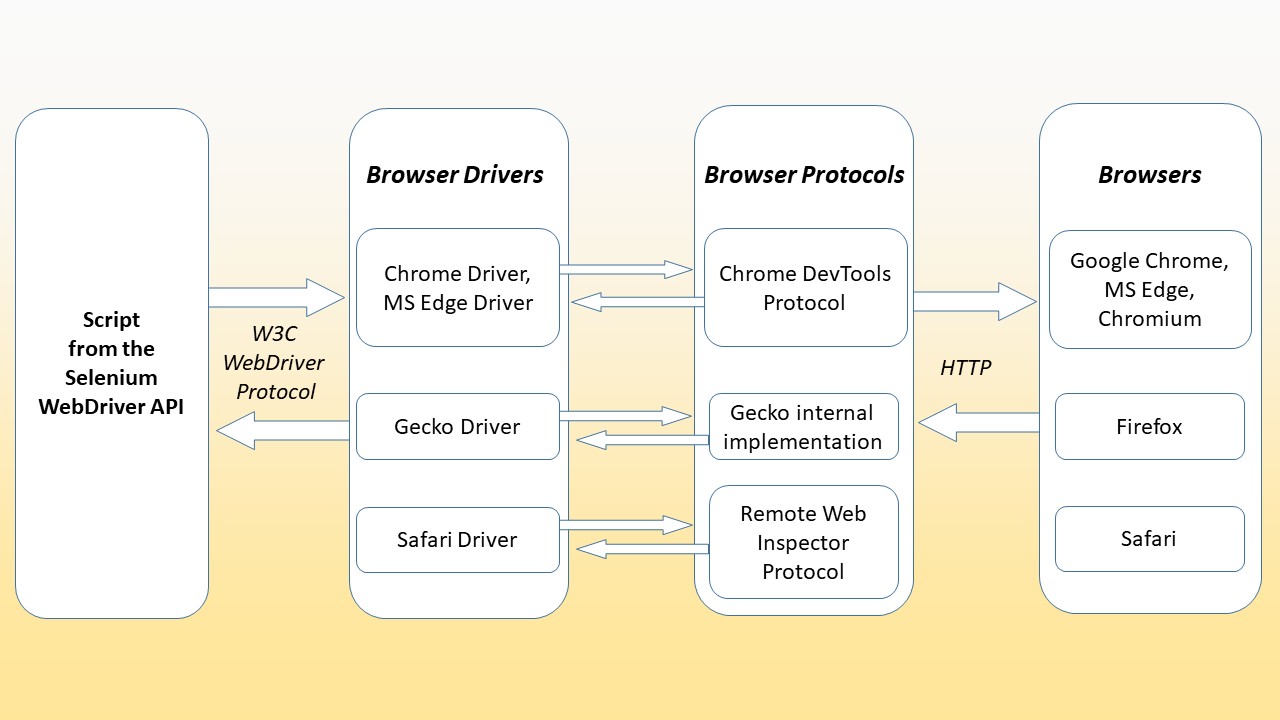
Follow the given steps to download Chrome WebDriver and set it up in the Selenium project
Step 1: Download Chrome WebDriver
1. In the browser, search for “Chrome WebDriver download” and open the official link.
2. Use this direct link: https://googlechromelabs.github.io/chrome-for-testing/
3. Select the stable version and, based on the OS of your computer, copy the URL and paste it in the address bar
4. The chromedriver will be downloaded in the zip file, extract the zip file, and get chromedriver.exe
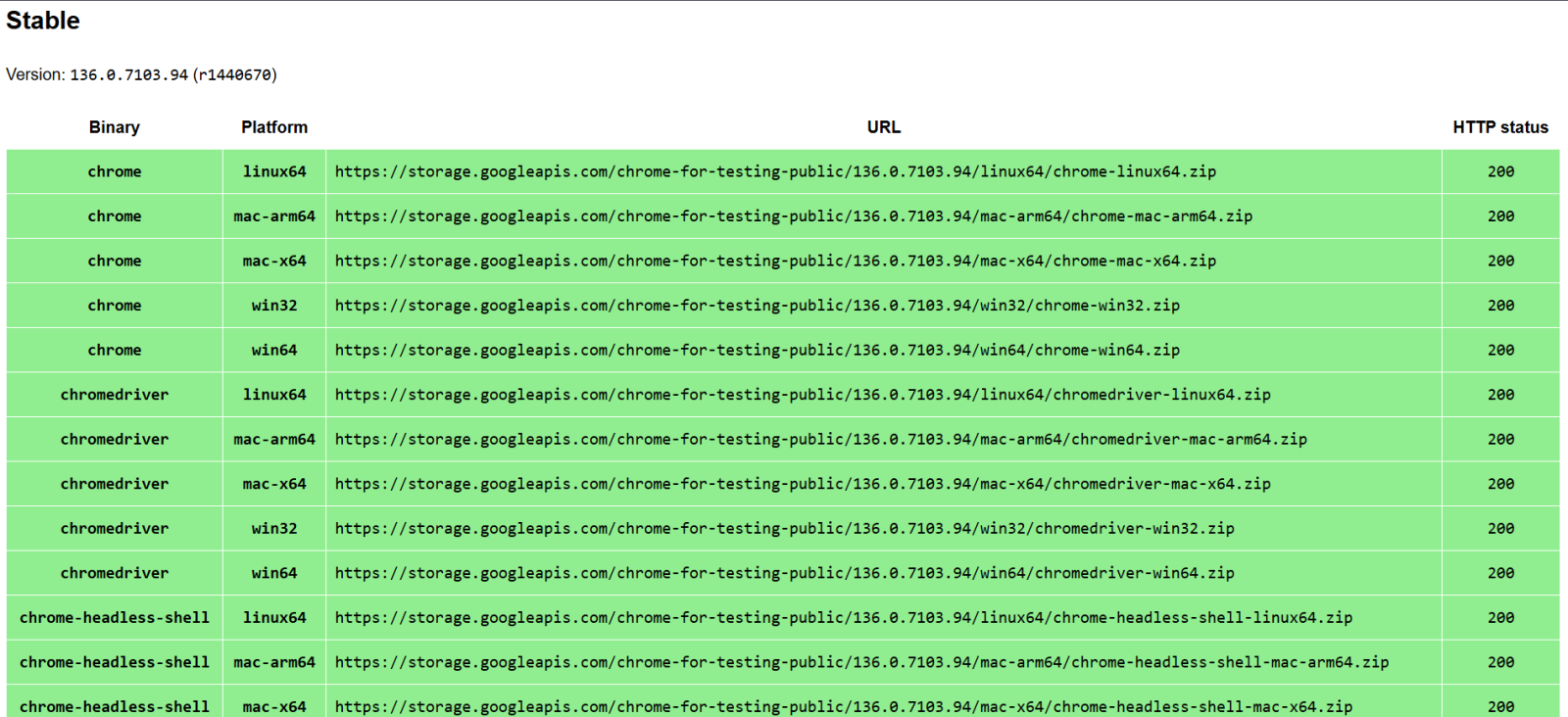
Step 2: Add ChromeDriver to the Project
1. Copy the chromedriver.exe file
2. Paste the chromedrive.exe in the project root level (where pom.xml is located).
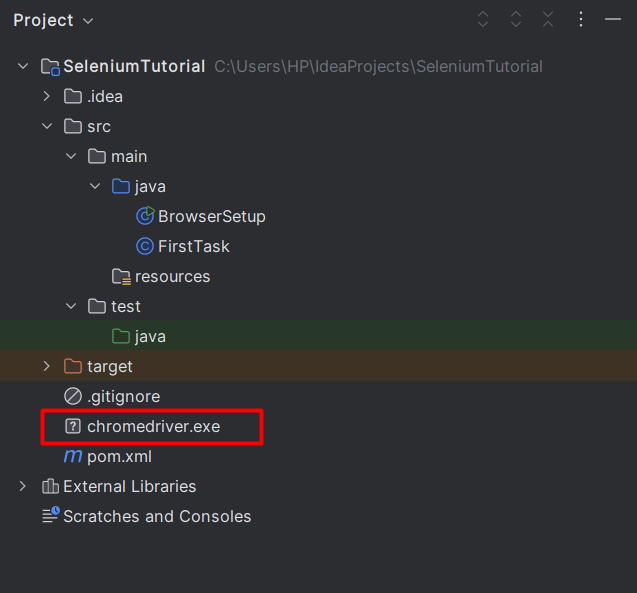
Step 3: Launch a Website using ChromeDriver
1. In the project, inside src/main/java, create a new Java class (e.g., BrowserSetup .java).
2. In the main method, write the following code to instantiate the ChromeDriver and open a website.
Selenium WebDriver Browser Support
Selenium WebDriver supports the following browsers. Each browsers has its own browser driver.
Google Chrome → ChromeDriver
MS Edge → EdgeDriver
Mozilla Firefox → GeckoDriver
Safari → SafariDriver (Works on macOS only)
Above, we saw how to add ChromeDriver to a Selenium project. Similarly, download the drivers for the other browsers from their official sources and place them in the project root directory.
Below are example code snippets to launch each browser:
Microsoft Edge
Mozilla Firefox
Safari